How to Run Multiple Versions of the Same Software on Windows 11 Using Portable Apps and Symlinks
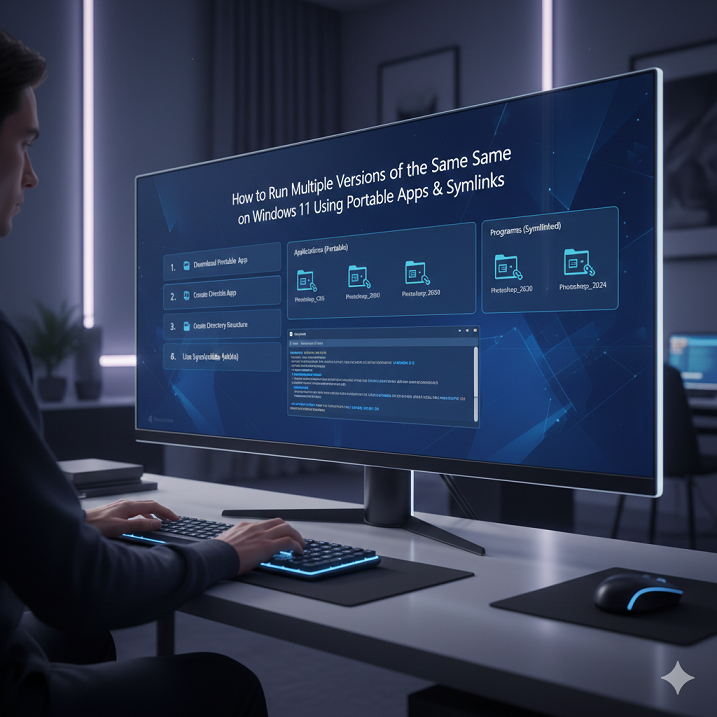
How to Run Multiple Versions of the Same Software on Windows 11 Using Portable Apps and Symlinks
For developers, designers, and power users who need to test different builds, maintain legacy compatibility, or use specialized plugins that conflict across versions, running multiple versions of the same software on Windows 11 can be a challenge. This is because these individuals are required to test different builds. Windows installs software in a manner that, due to shared registry entries, configuration files, and system libraries, prevents two versions of the software from coexisting. This is the default operation of Windows. With portable applications and symbolic links (symlinks), on the other hand, it is possible to create isolated environments that enable multiple versions to run independently of one another. This approach eliminates the possibility of conflicts, maintains the stability of the system, and provides the greatest possible flexibility for professional workflows. It is essential for anyone who is interested in effective version management on Windows 11 to have a foundational understanding of the methodology behind portable applications and symlinks.
Why it is frequently necessary to run multiple versions of a program
A significant number of users are confronted with circumstances in which various projects or tasks call for particular software versions. Taking Photoshop 2022 as an example, a designer might require it in order to ensure compatibility with legacy plugins while simultaneously testing the features of Photoshop 2025. It’s possible that developers will require multiple versions of Node.js or Python in order to test cross-platform scripts. In the absence of adequate isolation, installing one version overwrites the previous one, which can result in workflows that are disrupted or data loss. When multiple versions are run in parallel, workflows are guaranteed to remain consistent, downtime is reduced, and professionals are able to utilize both modern and legacy software features according to their specific requirements.
Comprehending the Concept of Portable Applications
The term “portable applications” refers to software packages that are self-contained and do not require installation or modification of the Windows registry. The fact that they keep all of their configuration files, libraries, and dependencies within their own directory ensures that they are completely separate from any other versions. The fact that multiple versions of the same application can coexist without causing any conflicts is made possible by this independence. As a result of their ability to launch from any folder, external drive, or network location, portable applications provide flexibility and mobility while simultaneously maintaining the cleanliness and stability of the system.
Understanding How Symlinks Make Version Management Easier
Advanced file system tools known as symbolic links, also known as symlinks, are used to point the path of one directory or file to another directory or file. Using symlinks, you are able to create a virtual path in Windows 11 that applications or scripts will recognize as a standard location while simultaneously pointing to files that are specific to a particular version. One example is that you can keep the default path for “Photoshop.exe” while simultaneously redirecting it to different versions of the program as required. This provides a powerful method for managing multiple versions in an efficient manner, as it enables workflow automation, script compatibility, and seamless version switching without the need to physically move or reinstall files.
Establishing Portable Versions of Your Software with the Help of
Acquisition of portable versions of the software that you intend to run is the first step in the process. While some developers offer official portable releases, others can be made portable by extracting installers using tools such as 7-Zip or third-party packaging utilities. Portable releases are available from some developers. After the extraction is complete, place each version in a separate folder that has a distinct name, such as AppName_2022 or AppName_2025 from the beginning. The process of creating symlinks or manually launching the correct version is made easier when files are kept organized and isolated. This also helps to prevent conflicts, ensure that the correct configuration is retained, and maintain proper configuration.
In order to facilitate switching, creating symlinks
You can create symlinks by inserting the mklink command into an elevated Command Prompt after you have completed the process of setting up portable folders. By way of illustration, the command mklink /D “C:\Program Files\AppName” “D:\PortableApps\AppName_2025” redirects the default path to a particular version. It is possible to switch versions quickly without having to reinstall the software or make any changes to the system settings if you update or delete the symlink. Additionally, symlinks make it possible for scripts, shortcuts, and automation tools to reference a consistent path. This helps to reduce errors and streamline workflows for multiple applications at the same time.
Introducing Multiple Versions Without Them Being Incompatible
Your ability to launch multiple versions of software independently is made possible by the presence of portable applications and symlinks. As a result of the fact that each portable instance is responsible for its own settings, temporary files, and dependencies, the conflicts that are typically experienced in standard installations are avoided. Users have the ability to run one version for testing purposes, another version for production work, and even open multiple instances simultaneously if the software supports this capability. When it comes to testing updates, debugging plugins, or migrating projects between versions, this method is ideal because it eliminates the possibility of configuration corruption.
Keeping separate configuration files organized and updated
Having configuration files that overlap is one of the most common problems that arises when running multiple versions of a program. Although portable applications are able to circumvent this issue by storing configuration settings within their own directory, symlinks can be utilized to redirect configuration paths for software that does not have built-in portability. As an illustration, by redirecting %AppData%\SoftwareName to a folder that is specific to a particular version, it is possible to guarantee that every instance will keep its preferences, plugins, and customizations. This separation is essential for ensuring that each version behaves exactly as expected, preventing accidental overwrites, and maintaining consistency in the system.
Switching between versions automatically
Automation scripts that make use of batch files or PowerShell can help streamline the process for users who frequently switch between different versions. It is possible to delete an existing symlink and then recreate it so that it points to the desired version before the software is launched by using a straightforward batch file. Take, for instance, a script with the name LaunchApp2022.A single click would be sufficient for bat to switch the symlink to Photoshop 2022 and open the program it on. The use of automation helps to minimize the need for manual intervention, reduce the likelihood of human error, and ensure predictable outcomes, particularly in workflows that require frequent context switching.
Addressing Legacy Dependencies and Plugins in the System
In many cases, older software versions are dependent on plugins or libraries that are not compatible with more recent configurations. Maintaining legacy dependencies can be accomplished without having an impact on more recent installations if you make use of portable applications and symlinks. Plugins and DLL files that are compatible with each version can be included in each version, ensuring that projects continue to function properly and remain consistent even after software updates. For designers, developers, and engineers who rely on extended toolchains for specialized tasks, this approach is especially important because it allows them to optimize their workflow.
Managing Conflicts at the System Level or Higher
In the future, it is possible that certain applications will make an effort to interact with shared system libraries or register components in the Windows registry. Despite the fact that portable applications reduce the severity of these problems, symlinks, in conjunction with careful folder isolation, can assist in safely redirecting these interactions. Sandboxing and virtual machines are two additional methods that advanced users can utilize to achieve additional isolation when it is required. This ensures that the presence of multiple versions does not inadvertently cause the system to become unstable or interrupt workflows that are not related to one another.
The Importance of Launcher Tools and Shortcuts in Streamlining Procedures
Further enhancements to workflow efficiency include the creation of shortcuts for each version or the utilization of launcher tools for the management of multiple portable applications. A menu that allows the user to select which version to run can be presented by tools such as Launchy, Executor, or even by custom scripts. Because of this, it is possible to maintain multiple software builds for day-to-day tasks without experiencing any additional friction. This eliminates the need to navigate through multiple folders and simplifies the selection of versions.
Updates that are maintained without causing versions to break
There are times when even portable applications receive updates. Each version should be kept in its own folder, and each version should be updated separately, so that conflicts can be avoided. When performing updates, you should never overwrite one version with another, as this would defeat the purpose of isolating the files. While ensuring that legacy workflows are preserved, careful version control also makes it possible for newer builds to take advantage of security patches and feature enhancements.
There are many advantages to using Windows 11 with multiple versions.
Through the utilization of portable applications and symlinks, users are able to keep their computing environment flexible and well-organized. It allows for testing, development, and creative work to be done without compromising the integrity of the system or the stability of the system. Through the process of isolating each version, you reduce the likelihood of experiencing data loss, configuration conflicts, or plugin incompatibilities, which ultimately results in time savings and gains in productivity. It is through the implementation of this strategy that professionals are able to confidently and effectively manage complex workflows.
The Importance of Being Skilled in Portable Applications and Symlinks
Methods of installation that are considered standard are not suitable for professionals who require multiple versions of software. Learning how to use portable applications and symlinks gives you complete control over application environments, guarantees compatibility across projects, and enables you to manage workflows in a seamless manner. After it has been implemented, this configuration transforms Windows 11 into a versatile platform that is able to support a wide variety of software requirements without making any concessions. This gives users the ability to run multiple versions of Windows 11 simultaneously without any difficulty.