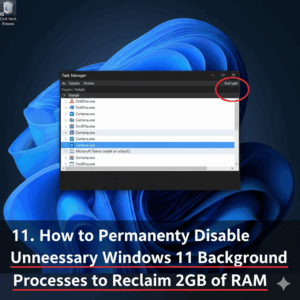
The Best Windows Task Manager Hacks for Identifying Which App is Draining Your Laptop Battery
The Best Windows Task Manager Hacks for Identifying Which App is Draining Your Laptop Battery
Despite the fact that the battery life of a laptop is one of the most important aspects of mobile computing, many users are unaware of which applications are continuously consuming power in the background without their knowledge. Task Manager is the primary interface for identifying applications that drain battery life, and Windows 11 includes powerful tools for monitoring resource usage. These tools are included in the operating system. Through mastery of Task Manager, you will be able to identify processes that are causing problems, comprehend how these processes interact with your system, and take measures to extend the amount of time that your laptop can run. The purpose of this guide is to provide you with precise control over applications that require a lot of battery power by examining advanced techniques and tips for Task Manager that go beyond basic monitoring.
Gaining an Understanding of How Windows Handles Battery Consumption
In Windows 11, power consumption is monitored at the level of both the application and the system process. The amount of battery drain that can be caused by applications that perform heavy computations, constantly access the internet, or use hardware acceleration can be significantly increased. You are able to monitor the utilization of the CPU, GPU, memory, and disk in real time through the use of Task Manager; however, it is essential to have an understanding of how these metrics correlate with power consumption. It is possible to differentiate between applications that appear to be idle but are still consuming energy and those that are actively causing power drain by analyzing both the foreground and background processes during the process.
Opening Task Manager and Using Power Metrics to Control Your Work
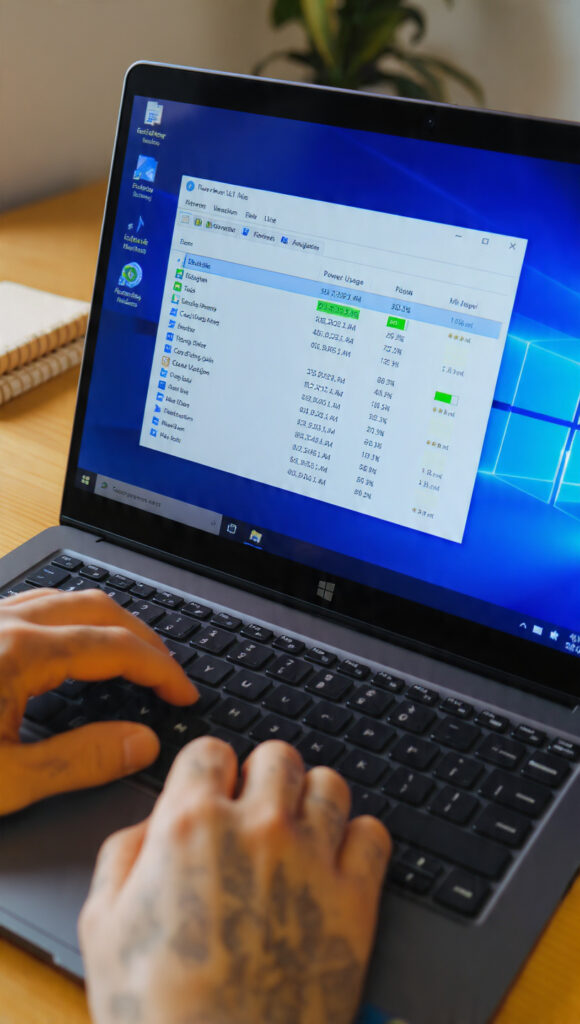
Through the combination of Ctrl+Shift+Esc or by right-clicking the Taskbar, you can access the Task Manager. When the “Processes” tab is opened, it displays all of the applications and processes that are currently running in the background. Columns for “Power Usage” and “Power Usage Trend” have been added to Windows 11, and they provide information regarding the immediate and historical impact that each application has had on the battery life. Learning how to interpret these columns is extremely important. For example, a background service that has a moderate amount of CPU usage but consistently high power consumption may be less of a concern than an application that uses a lot of CPU but has a low impact on the power consumption.
Sorting Applications According to Their Power Consumption
Sorting applications according to their power consumption is one of the most straightforward yet powerful Trick Manager hacks. When you click the “Power Usage” column, the processes are immediately reorganized, and the applications that require the most power are brought to the top of the list. Through the use of this real-time view, you are able to determine which applications are currently consuming the most power from your battery at any given moment. The “Power Usage Trend” column is a useful addition to this because it displays the sustained power draw over time. It draws attention to applications that may not cause an immediate spike in power consumption but do so consistently throughout a session.
Finding Processes Running in the Background That Use Up Battery
There are a lot of apps that drain the battery that are not visible in the foreground. It is possible for background processes such as cloud sync clients, update services, and telemetry tools to consume a significant amount of power without being noticed. The “Processes” tab of Task Manager displays all of these tasks, and the “Details” tab allows you to gain a more in-depth understanding of the amount of CPU, GPU, memory, and disk space that is consumed by each individual process. Through the monitoring of these background services, you are able to make educated decisions regarding which of them can be paused, disabled, or removed without compromising the stability of the application.
The utilization of the Efficiency Mode Function
One of the features that is included in the Task Manager of Windows 11 is called “Efficiency Mode,” and it restricts the amount of resources that specified processes use. It is possible to reduce the amount of battery drain that occurs without completely closing the application if you enable Efficiency Mode on applications that consume an excessive amount of CPU or memory. It is especially helpful for applications that need to run in the background but do not require full performance, such as chat clients, music players, or web browsers that have multiple tabs open. This feature is particularly useful for these situations.
Examination of New Business Programs
As soon as the laptop is turned on, a great number of applications begin to run in the background and consume battery power. These applications are launched automatically at startup. Through the “Startup” tab of Task Manager, you are able to view all of the applications that have been configured to launch at boot time, along with their “Startup impact” rating. By disabling high-impact or unnecessary startup programs, you can prevent the initial drain on the battery and also improve the amount of time it takes for the computer to boot up. Through the use of this preventative strategy, your system will begin in a state that is optimized, which will extend the battery life throughout the day.
Keeping track of GPU utilization for graphics-intensive applications
Discrete graphics processing units (GPUs) are frequently found in modern laptops. When certain applications are running on these laptops, the power consumption can significantly increase. Task Manager includes a GPU column that displays usage for each process. This column enables you to identify applications that are rendering graphics without a need for it or that are using hardware acceleration. The ability to detect GPU-intensive tasks allows you to adjust app settings or close them in order to conserve battery life. This is especially helpful when performing lightweight tasks such as editing documents or browsing the web.
Monitoring Activity on the Disk and the Network
Additionally, applications that continually read or write to disk or that maintain network connections are also a contributor to the draining of the battery. In Task Manager, the activity of each process is displayed, including disk and network activity, and potential culprits are highlighted. As an illustration, cloud storage applications that continuously synchronize files or web browsers that have multiple tabs open can generate sustained disk and network usage, which in turn reduces the amount of time a battery can last. Once you have identified these patterns, you will be able to schedule sync tasks, close tabs that are not being used, and adjust app settings to maximize efficiency.
For a more in-depth understanding, the use of details and resource monitor
Both the “Details” tab and the standalone Resource Monitor offer advanced users the ability to exercise granular control over the processes and services they are using. Depending on the process, you can view the amount of CPU, memory, disk, and network usage, set the priorities of the process, suspend or end tasks directly, and more. This level of detail is extremely helpful when attempting to identify hidden battery drainers, particularly processes that Windows considers essential but may not be required for your workflow. Such processes are particularly important.
Through the utilization of Power Plans and Battery Saver
There is a way to maximize efficiency by combining Task Manager with Windows’ Battery Saver and custom Power Plans. Task Manager is helpful in identifying applications that consume a lot of power. While Power Plans give you the ability to configure the settings for your processor and display, Battery Saver automatically reduces the performance of the system and the amount of activity that occurs in the background. Making adjustments to these settings in conjunction with managing specific applications ensures the longest possible battery life without sacrificing functionality.
Recognizing User Behavior That Is App-Specific
There are some applications that have built-in update checks, animations, or background analytics that cause them to consume battery power more aggressively than others. It is possible to identify patterns by monitoring these applications over time with Task Manager. For example, high power consumption may occur during file indexing, cloud syncing, or media playback. Having the ability to recognize these behaviors enables you to strategically schedule tasks, pause updates, or adjust app settings in order to minimize the impact on your battery.
Completing Tasks in a Secure Manner Without Interrupting Work
Through the use of Task Manager, you are able to terminate processes that are consuming battery power; however, it is essential to differentiate between essential system tasks and applications that are not required. The termination of critical processes can result in the instability of Windows or the loss of data. The ability to immediately reclaim battery power while maintaining system stability is made possible by concentrating on applications that are not completely necessary. In order to avoid disrupting your workflow, it is important to test changes in an incremental manner instead.
Bringing Results to Market and Documenting Them
When dealing with recurrent battery problems, it is helpful to keep a record of which applications and processes use the most power. For future reference, you have the ability to export lists of running tasks along with the resources that they use. The ability to track patterns over days or weeks, identify new culprits, and refine your approach to battery management are all features that are made possible by this. On the other hand, keeping records guarantees that once a solution is discovered, it can be applied in a consistent manner.
Reasons Why Task Manager Is More Than Just a Product for Monitoring
Task Manager is frequently considered to be nothing more than a performance monitor; however, when utilized in a strategic manner, it provides a powerful tool for managing battery life. You are able to gain actionable insight that directly translates into longer battery life by analyzing power usage, background processes, startup applications, GPU activity, and disk/network load. When you have mastered these techniques, you will be able to take complete control of the amount of power that your laptop consumes.
Active battery monitoring has a number of advantages over the long term.
By using Task Manager to monitor battery usage on a regular basis, you can prevent performance degradation, extend the overall lifespan of the battery, and ensure that your laptop continues to be reliable for mobile work. It also gives you the ability to make educated decisions regarding the utilization of software, the scheduling of tasks, and the configuration of the system. As time passes, these routines produce a workflow that is more effective, more predictable, and more conscious of energy consumption.
The Reasons Why Every Windows 11 Laptop User Ought to Be Familiar With These Cracks
The difference between casual users and power users is that power users are able to recognize and manage applications that drain their batteries. Hacks for the Task Manager not only increase the amount of time that passes between charges, but they also improve the responsiveness and stability of the system. It is possible for users of Windows 11 to achieve maximum efficiency and make the most of their laptop’s portability without making any sacrifices if they combine careful monitoring, targeted process management, and optimized power settings.