Fixing Windows 11 Sound Stuttering: How to Manage Audio Enhancements and Sample Rates Manually
Fixing Windows 11 Sound Stuttering: How to Manage Audio Enhancements and Sample Rates Manually
In Windows 11, audio stuttering can be surprisingly common, even on high-end systems. This is especially true for games. When users are playing music, videos, or making phone calls, they frequently experience crackling, popping, or intermittent pauses in the audio or video. Despite the fact that this issue may appear to be a driver issue or a limitation of the hardware, it is frequently caused by software settings, enhancements that are in conflict with one another, or sample rates that are not matched. It is essential for anyone who wants to experience sound that is uninterrupted and smooth to have a solid understanding of how Windows handles audio processing and the ability to manually adjust audio enhancements and sample rates with the program. It is possible to restore audio clarity, prevent stuttering, and ensure consistent performance across applications if you take control of these settings and ensure that they are adjusted appropriately.
In-Depth Analysis of the Reasons Behind Sound Stuttering
Stuttering in sound occurs when Windows is unable to process audio data at a rate that is sufficient to produce a continuous signal by itself. Overloaded system resources, background processes that interfere with the audio pipeline, or conflicts between enhancements and driver settings are all potential causes of this issue. It is possible for gaps or distortion to be produced by even minute differences in sample rates between the audio file and the device that is being output from. There are a lot of users who make the mistake of thinking that the issue is with the hardware, but in most cases, it is just a configuration issue that can be fixed by making careful manual adjustments in the sound settings of Windows 11.
Initially, we will check the hardware and drivers.
Prior to making any adjustments to the software settings, it is essential to check that the audio hardware and drivers associated with your computer are operating properly. Stuttering can be caused by drivers that are already outdated or generic; therefore, it is recommended that you download the most recent driver directly from the manufacturer. There are specific driver versions that are optimized for Windows 11 that are available for integrated sound chips, USB digital audio converters, and external sound cards. In addition to being essential for dependable audio performance, drivers that have been installed correctly serve as the basis for any additional troubleshooting that may be required.
Putting an end to the audio enhancements
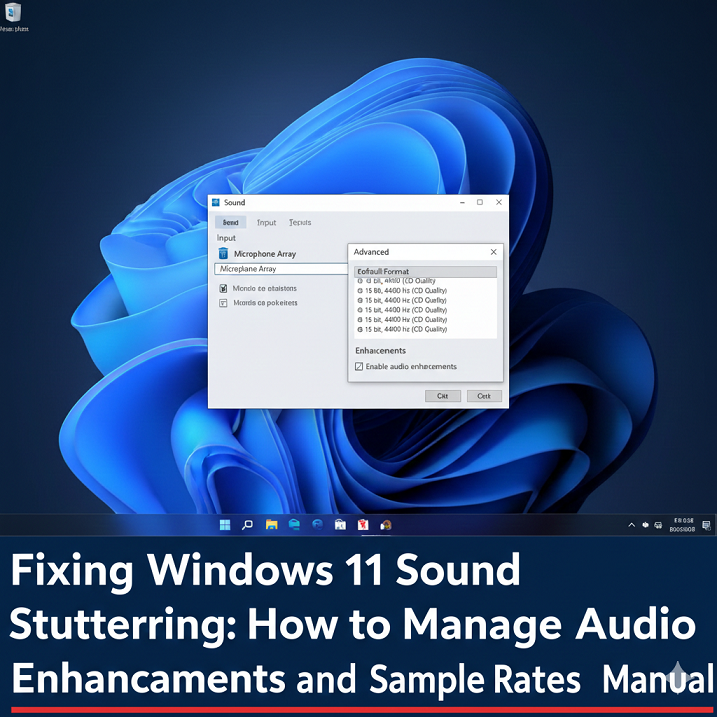
The term “sound effects” is sometimes used to refer to audio enhancements, which are features that are designed to improve the playback of audio by adjusting the levels of equalization, virtual surround, or loudness. Despite the fact that these features might make casual listening more enjoyable, they frequently compromise the quality of the audio streaming and can result in stuttering. It is necessary to open Sound Settings, choose your output device, click on Device Properties, and then click on Additional Device Properties in order to disable them. All of the options should be disabled under the Enhancements tab. This gets rid of unnecessary processing overhead, which has the effect of lowering latency and getting rid of many different types of audio stutter.
Setup of Sample Rates Through Manual Means
The number of audio samples that are processed in one second is referred to as the sample rate. It is common for Windows to default to 24-bit, 48000 Hz, or other similar rates, which may not be compatible with the media files you have. In the event that sample rates do not correspond, the system is required to resample the audio instantaneously, which may result in stuttering or crackling. In the Device Properties > Advanced tab, you can manually set the sample rate to align the output device with the most commonly used rates, such as 44100 Hz for music or 48000 Hz for video content. This allows you to align the output device with the most commonly used rates. When it comes to smooth sound, consistency between the source audio and the playback device is absolutely necessary.
Turning off the Exclusive Mode for Specific Applications
By utilizing exclusive mode, an application is able to bypass the mixing engine that is built into Windows and take complete control of the audio device. When multiple applications attempt to access the device at the same time, exclusive mode can cause conflicts, despite the fact that it is useful for professional audio software. When exclusive mode is disabled, Windows is able to manage multiple audio streams without experiencing interruptions. Even though it is a common cause of stuttering, this setting, which can be found in Device Properties > Advanced, is frequently ignored by users who are only using their devices occasionally.
Adjustments to Adjust Latency Settings
Additionally, stuttering problems can be made worse by high latency, which is especially problematic in real-time applications such as voice calls or gaming. Many audio drivers, including Windows, offer a variety of options for the size of the buffer or the processing latency. Although smaller buffers reduce delay, they also increase the amount of processing that must be done, which can result in stuttering if the system is unable to keep up. On the other hand, larger buffers yield greater stability, but at the expense of a slight delay in the audio. You are able to find the optimal balance between responsiveness and smooth playback by manually adjusting these settings into the desired configuration.
In the background, checking for processes and the load on the CPU
Stuttering in audio is frequently accompanied by high CPU or memory usage, which is caused by processes running in the background. In the moment, streaming applications, update services, and cloud synchronization tools have the potential to temporarily increase the load on the system, which can disrupt the playback of audio. It is possible to determine which processes are competing for resources by monitoring Task Manager while testing sound software. It is possible to improve audio performance by temporarily disabling or adjusting these applications. This is especially true when combined with adjustments to the sample rate and enhancement.
Bringing Audio Drivers Up to Date or Turning Them Back
Occasionally, stuttering will start after a Windows update or a change in the driver installation. It’s possible that upgrading to the most recent driver will fix compatibility issues, but there are instances in which newer drivers can introduce bugs. If you experience stuttering after installing an update, Windows gives you the option to switch back to an earlier version of the drivers. Keeping a stable driver version that is compatible with your hardware and Windows 11 build is frequently the quickest way to get rid of audio problems that occur intermittently within Windows 11.
The Disabling of System Effects for Applications That Run in Real Time
There are a number of optional features that are included in Windows, such as spatial sound, loudness equalization, and optimizations for communication devices. It is possible for these features to cause stuttering in sensitive applications such as voice over internet protocol (VoIP) calls or recording software because they dynamically alter the audio stream. Making sure that they are turned off guarantees that the audio pipeline will continue to be consistent and predictable. For the vast majority of users, disabling these options does not have any discernible effect on the sound quality that is perceived, but it does significantly improve stability.
Utilizing Power Plans That Offer High Performance
The power settings of Windows 11 can also have an effect on the audio stability. On battery or balanced plans, the central processing unit (CPU) may reduce frequency in order to conserve energy, which may result in real-time audio processing being interrupted. Making the switch to a high-performance power plan guarantees a consistent availability of the central processing unit (CPU), which in turn reduces stuttering and improves audio responsiveness during playback, calls, or recording.
An Examination of Applications That Are in Conflict
It is possible for certain applications to install background audio services that cause Windows’ native audio stack to become incompatible. Third-party equalizers, voice over internet protocol (VoIP) clients, and audio management suites that come packaged with gaming headsets are some examples. Avoiding conflicts can be accomplished by turning off these applications or removing any audio utilities that aren’t necessary. The reliability of an audio setup that is clean and minimal is superior to one that is burdened with multiple enhancements and background services that overlap with one another.
Examining the Sound After Every Alteration
The process of troubleshooting audio issues ought to be approached in stages. Begin by making one adjustment at a time, then test the playback and determine whether or not the stuttering continues. By using this method, you will be able to avoid making modifications that are not necessary and will be able to understand the impact of each change. A comprehensive view of improvements can be obtained through testing at multiple volume levels, with a variety of content types, and while the system is loaded according to its typical capacity.
Considerations to Make Regarding External Audio Interfaces
The use of high-end USB or PCIe audio interfaces that have dedicated processing can provide smoother playback in the event that all software adjustments are unsuccessful. Through their ability to handle resampling and buffering independently of Windows, these devices reduce their reliance on the resources provided by the system. Despite the fact that they are not always required, external interfaces are frequently utilized in professional recording or gaming setups where it is essential to have exceptional audio quality.
Long-term maintenance of audio settings that have been optimized
Following the resolution of the stuttering issue, it is essential to keep the settings in place. It is possible for enhancements or sample rates to be reset when Windows updates, driver updates, or new applications are installed. It is possible to maintain consistent audio performance over time by either exporting driver profiles or keeping a record of your configuration. It is important to review the settings on a regular basis in order to avoid regressions and maintain a smooth listening experience.
When Compared to Automatic Fixes, Manual Audio Management Is Superior
Windows’ automatic troubleshooting feature has the potential to make erroneous adjustments to settings or to re-enable enhancements that result in stuttering. The use of manual management gives you complete control over the features that are currently being utilized as well as the configuration of the sample rates. In order to achieve consistent and high-quality audio performance across all applications, this level of precision is required. This is especially true for users who create content, gamers, and professionals.
The Advantages of Having a Sound Experience That Is Smooth
Each and every interaction with Windows 11 is enhanced by the correction of sound stuttering. The experience of listening to music becomes more immersive, the synchronization of videos is precise, and communication in real time is extraordinarily clear. Consistent audio not only provides entertainment, but it also boosts productivity in settings such as meetings, editing, and live streaming. You can ensure that your Windows 11 machine always delivers sound that is dependable and of high performance by taking control of the enhancements, sample rates, and system settings.
Why It Is Crucial for Power Users to Have a Solid Understanding of Audio Settings
Casual users and power users are differentiated by their ability to manually understand and adjust the audio settings in Windows 11. You will have the ability to resolve problems that cannot be resolved by software or by automatically updating software. The ability to master audio enhancements, sample rates, and system-level configurations guarantees that your personal computer will operate at its highest possible performance and that your listening or recording experience will be uninterrupted, accurate, and professional with no interruptions.