The Complete Guide to Using Windows “Sandbox” to Safely Test Suspicious Software and Apps
The Complete Guide to Using Windows “Sandbox” to Safely Test Suspicious Software and Apps
There is a risk involved when you test unknown software or applications on your primary system. Even programs that appear to be completely harmless may contain malicious software, adware, or scripts that are poorly coded, all of which have the potential to corrupt files, compromise security, or destabilize Windows. Windows Sandbox is a powerful built-in solution that is included in Windows 11, and it enables users to safely execute potentially malicious programs in an environment that is completely isolated from the rest of the world. Sandbox operates as a temporary virtual machine, ensuring that any modifications, installations, or malicious behavior are contained within the sandbox and are automatically discarded when the session is terminated. Any individual who frequently tests software, downloads applications that have not been verified, or works in the field of cybersecurity or software development absolutely needs to have a solid understanding of how to use Windows Sandbox effectively.
This Is What the Windows Sandbox Is Actually
In its most basic form, Windows Sandbox is a virtual environment that is completely disposable and lightweight. It is included in the Windows 11 Professional, Enterprise, and Education editions. Furthermore, in contrast to conventional virtual machines, it is quick, it integrates without any problems with the host system, and it does not require any additional configuration other than enabling it in Windows Features. Every time you launch Sandbox, you are provided with a pristine copy of Windows that is configured with the default settings. This copy is completely erased when the session is terminated. This ensures that there are no lingering files, changes to the registry, or modifications to the system that are left behind. It is intended for testing and experimentation without posing any threat to the operating system that is being used as the host.
The Reasons Why You Should Never Put Unknown Software to the Test on Your Primary Computer
When you run unknown applications on your primary computer, you put yourself in danger of a variety of threats. Malware has the ability to stealthily copy data, install keyloggers, and break into Windows or third-party software to take advantage of vulnerabilities. Inadequately optimized applications have the potential to corrupt files, change registry settings, or consume resources in a manner that is detrimental. Sandboxes offer a separate environment that is unable to access your actual files or system settings, which helps to eliminate the risks that are associated with them. It is essential to have this level of protection in order to preserve the stability of the system, protect the privacy of personal data, and ensure overall security while still allowing for experimentation.
In Windows 11, enabling the Windows Sandbox feature
The Sandbox feature needs to be activated in Windows Features before you can attempt to use it. You can easily complete this process by opening the “Turn Windows features on or off” menu, locating the “Windows Sandbox” option, checking the box, and then restarting your computer. You are required to enable hardware virtualization in your BIOS or UEFI firmware in order to use Sandbox. This is because Sandbox is dependent on virtualization. This is supported by the vast majority of modern CPUs, but it may be turned off by default. By activating both virtualization and the Sandbox feature, one can gain access to a completely isolated testing environment that is prepared to launch any application without potential danger.
How to Start and Make Use of the Windows Sandbox
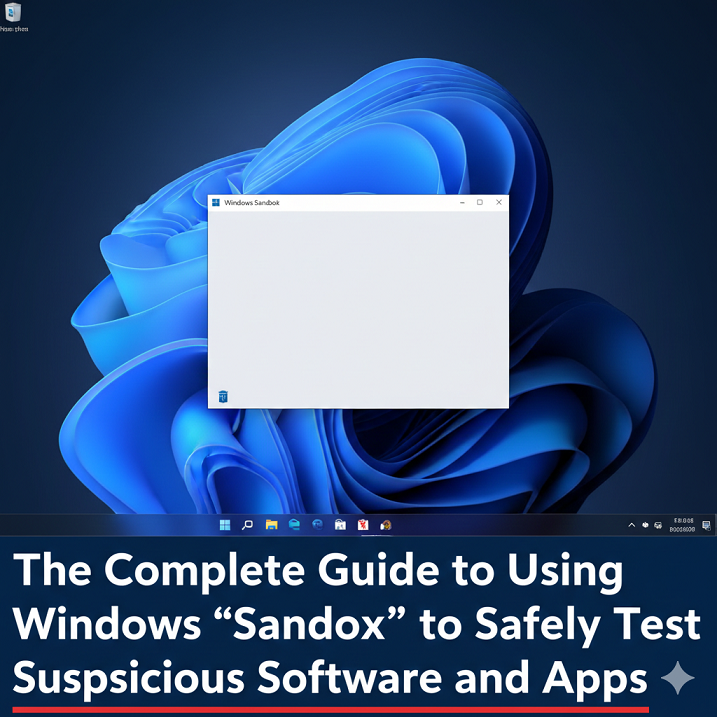
Searching for Sandbox in the Start menu is all that is required to launch it once it has been enabled before. When it is opened, it presents a clean, uncluttered Windows desktop that is identical to the one that is provided by a standard Windows installation. Copy-and-paste or drag-and-drop are two methods that can be utilized to transfer files from your host system to the Sandbox. This enables you to conduct controlled testing of particular applications. Any software that is installed within Sandbox will function normally; however, once the session is terminated, all changes, programs that have been installed, and files that have been downloaded will be permanently deleted. Because of its disposable nature, Sandbox is an excellent tool for making sure that installers, patches, scripts, and unknown executables are tested without risk.
The Secure Transfer of Files Into the Sandbox Program
Despite the fact that Sandbox provides isolation for your system, you are still able to manually copy files from the host machine into the virtual environment. The copy-and-paste and drag-and-drop methods are supported, but only within the existing session that is currently active. When transferring files, it is essential to only send those that you intend to test. Whenever possible, avoid transferring entire folders that contain sensitive data in bulk. The controlled handling of files ensures that malicious software is unable to access information that is not necessary, and it also reduces the potential impact that malware or system errors could have during testing.
Examining Applications in a Separate Laboratory
The Sandbox environment allows you to open and run any executable, installer, or script you choose. The application operates in the same manner as it would on a physical computer, including accessing the virtual file system, registry, and internet connection, if the latter setting is enabled. The behavior of the device can be observed, network activity can be checked, installation folders can be examined, and it can be verified whether or not it attempts to make unauthorized changes. Due to the fact that Sandbox is only temporary, any potentially harmful changes that it makes are only applicable during the session. Comprehensive testing is made possible as a result, without compromising the integrity of your primary Windows installation.
Watching the Activity of the Network and the System
It is possible to monitor the behavior of software through the use of tools such as the Windows Task Manager, Resource Monitor, or network monitoring tools while the software is running in Sandbox. You are able to check the utilization of the CPU and memory, as well as disk writes and network connections. Software that uses an excessive amount of resources or attempts to engage in suspicious network activity can be identified with the help of this. The monitoring procedure is completely risk-free because all observations are carried out within the sandbox environment, which is completely isolated. Prior to allowing the software to run on your host machine, you have the ability to identify any potential threats or performance issues that may arise.
Individualizing Sandbox Settings Through the Use of Configuration Files
It is possible to personalize Windows Sandbox by utilizing straightforward XML configuration files. Through the use of these files, you are able to exercise control over a variety of aspects, including the ability to enable or disable network access, the mapping of particular host folders for file access, and even the preloading of scripts or applications upon launch. For more advanced testing scenarios, such as those in which you need to replicate controlled environments, automate software launches, or restrict specific resources, this flexibility is useful. Through the use of sandbox configuration files, the environment is made to be highly adaptable while simultaneously preserving its security and isolation.
Acquiring Knowledge of the Limitations of the Windows Sandbox
Sandbox is a powerful tool; however, it does have some limited capabilities. When it comes to complex testing, such as running multiple versions of an operating system or configuring persistent environments, it is simply not capable of replacing full virtual machine software. It is also necessary to have Windows 11 Pro, Enterprise, or Education in order to use Sandbox; users of the Home edition do not have access to it. Additionally, because it shares system resources with the host, performance may suffer when testing applications that involve a significant amount of processing power. When you are aware of these constraints, you will be able to use Sandbox in an appropriate manner and select other virtualization tools when they are required.
The process of concluding a session and removing all changes
When you close the window in Sandbox, all of the data, applications, and system modifications that were made during the session are automatically discarded. This is one of the most valuable features of Sandbox. One does not have to manually uninstall software or reset configurations in order to accomplish this. The possibility of leftover malware or corrupt files affecting your primary system is eliminated as a result of this action. When you launch something, you always start with a blank slate, which guarantees that your testing environment will continue to be safe and predictable.
The Advantages of Utilizing Software Testing on a Regular Basis
Users are able to evaluate software updates, beta releases, unknown downloads, and trial programs in a secure environment when they make frequent use of Sandbox. It is especially helpful for those who work in the field of information technology, developers, and security researchers. Utilizing Sandbox on a consistent basis alleviates concerns regarding the testing of untrusted files and enables experimentation without the fear of causing damage to the system. In addition to this, it promotes a more secure workflow in which potentially harmful applications are never run on the primary operating system.
Implementing Sandbox in Conjunction with Other Security Procedures
Although sandbox is an extremely effective security measure, it is most effective when used in conjunction with other defenses. A further reduction in risk can be achieved by utilizing antivirus software that is up to date, keeping the system updated, and avoiding downloading unknown files whenever it is possible. Although Sandbox serves as a final safety net, adhering to good security practices ensures that even accidental file downloads that occur outside of Sandbox are less likely to compromise your system.
What Makes Sandbox Such a Game-Changing Tool for Safe Testing
The Windows Sandbox software completely alters the way in which users interact with potentially harmful software. Through the provision of a completely isolated environment that simulates a genuine Windows installation, it eliminates the need for guesswork and risk. Sandbox testing is a more efficient, less complicated, and secure alternative to more conventional methods such as using full virtual machines or secondary computers to test applications. The ability to master Sandbox is an essential skill for anyone who frequently works with new or unverified programs. It not only increases productivity but also improves cybersecurity.
Constructing a Workflow Model Based on Sandbox
With Sandbox usage, power users frequently establish a standardized workflow, which includes the following steps: identifying files to test, transferring them into Sandbox, monitoring behavior, and deciding whether or not to install them on the host. Using this method in conjunction with taking snapshots of the host data and keeping notes organized guarantees that testing will be effective, repeatable, and secure. An organized workflow reduces the number of errors that occur, expedites the process of making decisions, and guarantees that Sandbox will continue to serve as a trustworthy safety tool rather than a casual convenience.
The Reasons Why Sandbox Should Be Used by Every Windows 11 Professional
Sandbox is not only for people who are interested in security. Utilizing this feature can be beneficial for a variety of users, including developers testing beta applications, IT administrators validating updates, and regular users testing out new software. It safeguards the host system, minimizes the amount of time lost due to crashes, and guarantees the integrity of the data. Acquiring the knowledge necessary to enable, configure, and make effective use of Sandbox is an essential component of modern Windows 11 proficiency and in ensuring digital safety.