Managing GPU Acceleration and Performance Bottlenecks When Running Heavy Neural Filters in Photoshop
Managing GPU Acceleration and Performance Bottlenecks When Running Heavy Neural Filters in Photoshop
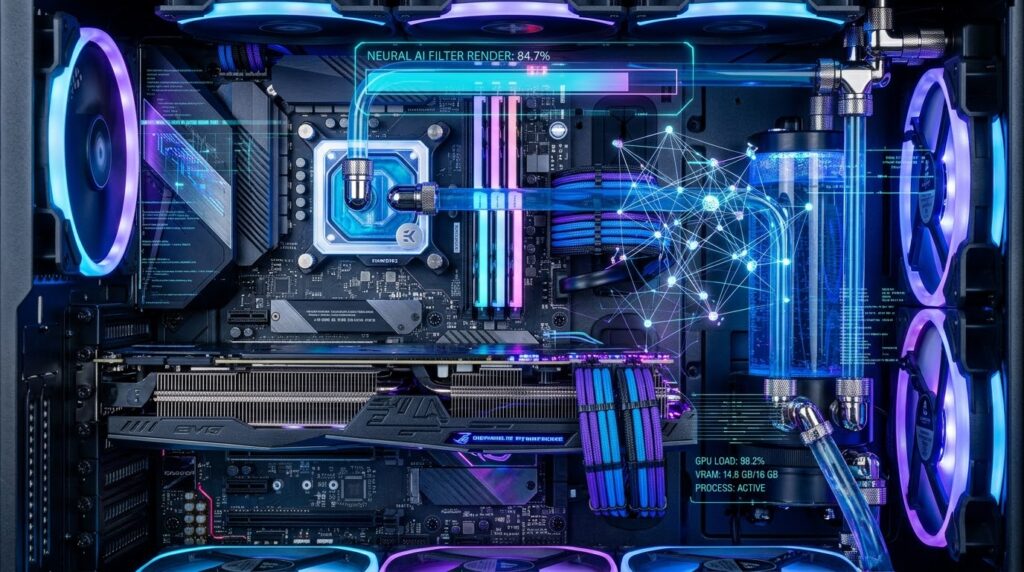
Adobe Photoshop uses GPU acceleration to render numerous intensive visual effects, including Neural Filters, sophisticated blurs, picture transformations, and AI-powered editing tasks. Graphics hardware, driver compatibility, memory limits, and wrong program settings can cause these tools to function slowly, freeze unexpectedly, or provide incomplete results. Understanding how Photoshop allocates work among the CPU, GPU, and system RAM can help you find performance bottlenecks more quickly. Neural Filters can be especially computationally intensive, as they usually need considerable processing power to evaluate visual material and create altered pixels. A strong graphics card alone won’t guaranty smooth performance if the system doesn’t have enough RAM, available VRAM, or suitable software components. Photoshop’s choices , hardware capabilities , graphics drivers , and the complexity of the document you’re editing . To optimize GPU acceleration , you need an organized strategy . These changes can increase responsiveness, decrease needless latency in processing, and make complex editing operations more predictable. By detecting the real cause of performance difficulties, Photoshop users can enjoy a more consistent editing environment without instantly replacing their systems.
How GPU Acceleration works in Photoshop
GPU acceleration allows Photoshop to take advantage of a compatible graphics processing unit (GPU) to speed up certain visual effects, rather than only using the central processing unit (CPU). GPUs include plenty of processing cores that are optimized for particular kinds of concurrent calculations . This makes them useful for rendering images , performing interactive transformations and other graphics – related operations . But not all Photoshop operations will benefit equally from GPU acceleration, and each Neural Filter may distribute processing demands in different ways. Some filters demand a lot of AI work, while others include downloading model components, preparing image data, or processing outcomes through further software stages. So a filter that displays slowly does not necessarily mean that the graphics card is not working properly. Users should be aware of the distinction between delayed rendering of images, long processing by AI, lag in the interface, and delays due to network access or model initialization. You may see your CPU usage, GPU usage, memory usage and disk usage during a filter operation to see which part is being stressed. This knowledge gives you a better starting point than just adjusting a whole bunch of performance parameters without knowing what they do.
Photoshop GPU Settings & Compatibility Check
The first step in the diagnostic process is to check that Photoshop sees the installed graphics processor, and that GPU acceleration is enabled. Open Photoshop, go to Edit, select Preferences, click Performance. The accessible parameters and labels may differ significantly depending on the version of the application. Check the graphics processor settings and see if the application is aware of the anticipated GPU. If the Use Graphics Processor option is present, make sure it is enabled unless you are troubleshooting by temporarily removing it. Some editions also give advanced graphics options to control supported drawing and rendering functions. Don’t change all advanced options at once, because it makes it hard to tell whether change is helping or hurting performance. If you have changed a related preference, restart Photoshop and try the same Neural Filter again. If Photoshop states that the GPU is unsupported or unavailable, verify the graphics driver, the operating system compatibility, and hardware requirements before pursuing more thorough optimizations. A recognized GPU does not immediately mean that all Neural Filters can use it successfully, therefore filter-specific criteria should also be taken into account.
How to Update Graphics Drivers Without Creating New Issues
Old, faulty, or incompatible graphics drivers might interfere with Photoshop acceleration and create instability when performing heavy AI operations. NVIDIA, AMD and Intel constantly update their graphics drivers to fix compatibility issues and improve performance and add support for newer apps. Users should download drivers from the graphics hardware manufacturer’s official website or from a reliable system update program. If you are using your PC for creative applications, it can be worth trying a creator-focused driver or studio driver from the manufacturer, where available, especially if you care more about stability than having compatibility for the newest games. Before installing a new driver, find out the precise model of the graphics card and make sure that the chosen package is compatible with the installed operating system. When installing close Photoshop and other graphics intensive applications and restart the computer if necessary. After the update, open Photoshop and verify that the GPU is detected properly. whether performance degrades immediately after a driver update, check to see whether there is a prior stable driver that is still available and compatible with the current system. Never download unapproved driver packages . Never assume that the latest release will work best for all hardware configurations .
VRAM and System Memory Allocation Optimization
Video random access memory, generally known as VRAM, is used to hold graphics resources that the GPU needs, such as image data, textures, and intermediate information throughout processing. Heavy Neural Filters can be resource-intensive when working with high-resolution images, several layers, or complex documents. “When the available VRAM is exhausted, performance can begin to suffer as apps compete for resources or shuffle data around between multiple memory locations. Photoshop also uses system RAM to store documents, editing history, interim computations and other program functions. Go to the Performance options and check the available memory allocation settings. More RAM for Photoshop can help when it is competing with other memory-hungry apps. But allocating it virtually all the system memory can render the entire machine unstable or unresponsive. Allow enough memory for Windows, background services and supporting applications required by the workflow. If you are about to apply a particularly demanding filter, close unneeded browser tabs, video editors, games and other memory-intensive apps. Memory pressure is especially crucial for systems with integrated graphics as system RAM might also be used for graphics memory. There are hardware limitations that more memory allocation cannot surmount. But smart resource management can avoid unnecessary slowdowns.
Decrease document complexity before using neural filters
But even with a powerful graphics card, document complexity can significantly impair Photoshop speed. The more pixels an image has, the larger it is, and the more temporary resources a filter may need for a high-resolution file. And a document with plenty of adjustment layers, embedded smart objects, complicated masks and many layer effects could also require additional processing for some editing tasks. Before you apply a demanding Neural Filter, you should decide if the full document needs to be active or if a working copy would suffice. For example, try duplicating the document and turning off any visible layers that you don’t need to see if the complexity of the page is causing the lag. When possible, test the filter on a copy of the target layer rather than repeatedly processing the entire composite. Do not permanently flatten crucial working documents in an effort to enhance performance, because flattening eliminates editable layer relationships. Smart Objects and adjustment layers can help keep things flexible, albeit their advantages should be considered against the computational expense of a given workflow. If the filter runs rapidly on a smaller test image but slowly on the genuine, you should investigate the image dimensions, document structure and available RAM further.
Neural Filter Download and Processing Delay Handling
Picking an effect does not necessarily mean that Neural Filters start processing instantly. Some filters may need an extra initialization before the first result is produced. Some filters require downloading AI model components. Slow internet connection, restricted network access, failed downloads, or inaccessible model materials might cause delays that appear to be GPU performance issues. Open the Neural Filters workspace and see if the filter you chose needs to be downloaded or updated. Let the download finish before judging the processing speed and do not keep stopping the process unless Photoshop explicitly says it failed. If a filter hangs during initialization, make sure the machine has a solid connection to the Internet and that firewall or security software is not unnecessarily blocking legitimate Adobe services. Your sign-in status, upgrades to the program, and how much storage space you have can also effect your experience. Once the filter initialization has been successful, test it again with the same image and settings. For the same procedure , if it is still exceptionally slow , verify if the GPU is compatible and check the system resource use independently . Separating model download latency from actual image processing latency avoids unnecessary driver updates and focuses the problem on the right component.
Boosting Scratch Disk and Storage Performance
Scratch disks are temporary storage drives used by Photoshop when the working requirements are larger than the available physical memory, or when some tasks demand additional disk space. When the system drive is nearly full, the storage device is slow, or the scratch disk is not properly configured, performance can degrade and applications can return errors. Open up the Preferences in Photoshop and look for the Scratch Disks settings to see what drives are accessible for temporary processing. Use a quality solid-state drive with plenty of empty space wherever possible, not one that is nearly full or significantly slower. An internal NVMe SSD can offer good storage performance but the advantage is dependent on the actual workload and the rest of the system. Make sure you have enough free space on the disk that you use for scratch, and do not clog it up with big temporary exporters or other stuff you have just downloaded. If Photoshop is slow and memory usage is high, check whether scratch disk activity is also abnormally high. But a scratch drive is no replacement for the dedicated compute of a compatible GPU, and you can’t always fix a Neural Filter bottleneck by boosting your storage. Storage optimization works well when the problem is caused by transient data handling, memory load, or lack of disk space.
Fix Freezes, Crashes and Unwanted GPU Errors
Troubleshooting Neural Filters that freeze Photoshop or repeatedly crash is best done systematically rather than restarting application repeatedly. First, save your document and identify whether the issue is with one filter, one image, or with all effects that use AI. Try a duplicate file with fewer layers and moderate image size to see if the issue is related to document complexity. Next, make sure that Photoshop and the graphics driver are compatible with the installed operating system and supporting hardware. Try undoing that precise change if the problem started after changing preferences or installing a driver. Disabling GPU acceleration temporarily may also be a diagnostic test, if the app is still stable enough to open its settings. If the filter only works when GPU acceleration is turned off, it is a sign that there may be a problem with graphics compatibility or driver, but it doesn’t exactly indicate the problem. Disabling acceleration is not a one-size-fits-all solution, as some filters may need specific software components or required hardware. Users should also check for Photoshop updates and study any issue messages that appear. If the crashes persist, gather the appropriate system specs and attempt to recreate the issue with a simple test document before reaching out to Adobe Support.
Creating a Robust Performance Testing and Optimization Workflow
A regular test technique allows you to know if a performance tweak actually makes Photoshop better, or if it only creates a temporary or misleading difference. First, list the graphics card model, driver version loaded, system RAM, free VRAM, Photoshop version, and roughly the size of the image. Pick one typical image and apply the same Neural Filter, settings and output conditions to each test. See how long it takes to set up the filter, start processing and show the final result. Also notice if the interface remains responsive and if the CPU, GPU, RAM, or disk utilization approaches practical limits. Update the graphics driver, close background apps, or simplify the document, changing one variable at a time. If asked, restart Photoshop and try the test again in similar circumstances. If there is improvement, keep the modification and record the result. If there is a deterioration, undo the change and test another variable. Don’t just look at one use percentage, as some filters may not fully utilize all of the resources on the GPU even if another processing step is the bottleneck. A repeatable routine can help differentiate between hardware restrictions and software configuration problems, and give useful proof when a hardware update or more troubleshooting is required.