Resolving Pen Tablet Pressure Sensitivity Lag and Smoothness Inconsistencies Inside Photoshop Brush Settings
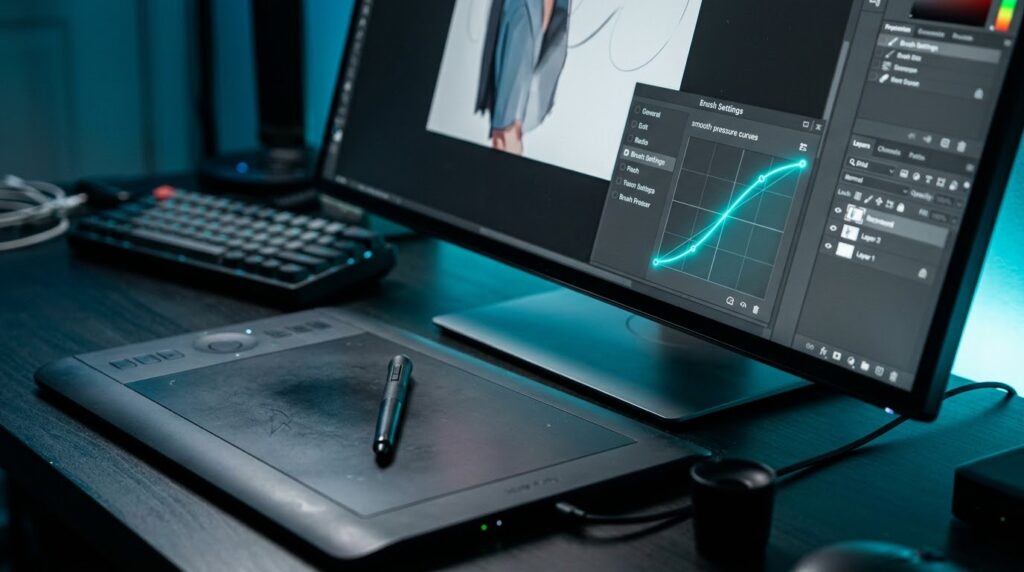
Resolving Pen Tablet Pressure Sensitivity Lag and Smoothness Inconsistencies Inside Photoshop Brush Settings
Pen tablets are must-have tools for digital artists, illustrators, photographers and graphic designers who need precise control over their brush strokes in Adobe Photoshop. However, problems with pressure sensitivity, mouse lag, uneven line smoothness, and erratic brush behavior can throw a wrench in the creative workflow and hamper productivity. These problems can happen even if the tablet hardware is fine, because Photoshop depends on a lot of interacting components such as brush dynamics, input drivers, operating system settings and performance parameters. What seems like a smooth brush in one document can feel laggy in another, especially when dealing with large canvases, intricate brush tips, or high-resolution files. Pressure sensitivity may also function erratically if the pen input settings are not in agreement with the driver configuration provided by the tablet manufacturer. The way to solve these problems is to systematically disentangle hardware concerns from software settings and brush specific behavior. By tweaking the brush settings in Photoshop, including smoothing and spacing, and by updating the tablet drivers and boosting performance, users can recover more predictable pen input. More precision while drawing and less need for corrections are achieved with a well-calibrated tablet . This makes the digital painting process more responsive .
Photoshop Pen Pressure Sensitivity Explained
Photoshop brushes may respond to pressure sensitivity, which means they can respond to pressure applied by a suitable stylus. Depending on brush arrangement, pressure can alter stroke thickness, opacity, flow, or other attributes This kind of behavior is especially useful for digital painting, masking in depth, calligraphy and organic line work. Photoshop employs brush dynamics to define how stylus input impacts the look of each stroke. To see these options, go to the Brush Settings panel and look at the available dynamics for the selected brush. Shape Dynamics can alter brush size based on pen pressure, and Transfer can control opacity or flow based on pen pressure depending on what options are available. If you turn off the right pressure control, the brush can create the same strokes regardless matter how hard the stylus is pressed. Either a pressure warning or unavailable control may also mean that Photoshop is not receiving the tablet input it expects. Before you change sophisticated settings, try the stylus on a blank document with a simple round brush. This lets you know if the problem is with all of the brushes or just one particular preset. Knowing the difference can help you avoid making unnecessary adjustments to your carefully adjusted brush parameters.
Tablet Driver and Operating System Conflict Diagnosis
Photoshop is responding erratically to pressure, lag on the mouse, or doing weird things with your brush. It’s usually a tablet driver problem. The driver converts the movements of the stylus and the pressure information into input that the operating system and creative apps can read. If the driver is obsolete, faulty, or poorly configured, Photoshop may get partial or delayed input. Start troubleshooting by checking the tablet in the manufacturer’s configuration utility and in another drawing application if you have one. If more than one program does not recognize the pressure sensitivity, the problem might not be Photoshop. To solve compatibility issues , you can try downloading the correct driver for your particular tablet type and operating system . Re-installing a working driver is not the first thing you should do , unless you have a good reason to . Unexpected behavior can also result from conflicting installations from various tablet manufacturers. Users should check the drivers they have installed and only delete outdated components when appropriate. Replace the drivers, reboot the computer, and try the tablet again. Also verify permissions on the operating system and settings on the input device, especially after large system changes. A comprehensive driver check helps you figure out whether the problem lies with Photoshop itself or the wider pen-input environment.
Making Brush Settings for Consistent Pressure Response
In Photoshop’s Brush Settings panel, there are a number of variables that determine how a brush reacts to stylus pressure. If your pressure sensitivity is acting up try a simple brush first and turn on the correct Pen Pressure option under Shape Dynamics. If you want the opacity to be pressure sensitive, check the Transfer settings and select the correct pressure control. You really do not want to turn on many dynamics unless you really want to. Complex brush behavior is difficult to troubleshoot. Other variables such as Brush Size Jitter and Minimum Diameter can also determine how much pressure impacts the stroke width. A high minimum diameter could cause light strokes to appear thicker than they should, while an improper range of sizes might restrict the perceived difference between light and heavy pressure. If you are using opacity painting, check the brush’s Transfer settings and the opacity setting in Photoshop’s options bar. Low global opacity can make it harder to disentangle pressure variations. Testing one variable at a time makes it easy to establish which setting is causing the erratic response. Once you have a basic brush working, bring in the other dynamics one at a time. This way you still have control of the brush, but you do not have to make changes to settings that do not need to be changed.
Performance Optimization: Minimizing Brush Stroke Delay
Brush lag is when the visible stroke is delayed and lags after the stylus movement. It could be canvas size, brush complexity, document processing demands, system memory, graphics processing, or smoothing settings. Large brushes with rich textures might take more processing than simple circular brushes, especially when painting on high resolution documents with several layers. If this is the problem, try a smaller brush on a new, rather tiny document. If the stroke becomes responsive, the delay could be the original document or brush setup. The correct settings for Photoshop’s performance preferences, which relate to graphics and memory, will vary depending on your machine and the version of the software you have installed. Close unneeded applications to free up system resources.Reduce the size of the brush or simplify complex brush tips for better responsiveness. Users should also ensure that if hardware acceleration is present and supported, Photoshop is using the desired graphics processor. Turning off graphics acceleration should be considered a diagnostic step, not a universal fix, since it can impact performance and offered functionality. The best modification will be the one that does not degrade the overall quality of the image . A comparison of behavior over a number of controlled testing will reveal this .
Tuning Smoothing Settings Without Too Much Delay
Photoshop’s Smoothing tool helps eliminate brush stroke imperfections by smoothing the path that is created when the stylus moves. This function is helpful for clean outlines, writing, curves and detailed illustration work. But if you set the smoothing value too high, you may find that the movement seems laggy since Photoshop is smoothing the stroke to compensate for nonregular jitter and direction changes. The visual effect relies on the brush picked, smoothing configuration, system performance and the way the stroke is created. If a brush seems detached from the stylus, reduce the Smoothing value and test the effect with short lines, lengthy curves and fast changes of direction. If the stroke becomes more responsive then the observed latency is likely due to excessive smoothing. Depending on the version of Photoshop you have, there may be extra smoothing choices that affect how stabilization works, therefore the controls accessible may differ from release to release. Artists needing very smooth curves might choose to set the smoothing to a substantial amount, while rapid sketching might want lower levels. Do not confuse smoothing delay with real input latency due to drivers or system performance. You can adjust smoothness to make drawing better, but it won’t fix a tablet that isn’t sending pressure information properly.
Adjusting Brush Spacing and Stroke Smoothness
The spacing of the brush dictates how far apart the various brush imprints are from each other on a stroke. If the spacing is too high , you may get curving lines that look segmented . Painted borders may look uneven instead of continuous . Look for the Spacing slider for the selected brush in the Brush Settings panel, and reduce it if you see gaps or repeating imprints of the brush tip. Lower spacing tends to provide a more continuous stroke, but may raise processing demands for large or complicated brush tips. So, very little spacing can cause slow performance in some cases. For a regular round brush a reasonable spacing can sometimes be a great starting point. Of course the perfect value is a function of brush size and the effect you are after. Textured brushes can purposely have larger spacing to generate interesting patterns , therefore forcing it lower can ruin the artistic feel of the brush . The perceived smoothness of a stroke can also be affected by Shape Dynamics, angle variation, and texture choices. Try out the brush with consistent sketching motions and see how it looks at different zoom levels. This helps to discern real gaps in the brushwork from pixel-level inconsistencies generated by magnifying the canvas. Balanced spacing results in more predictable strokes while keeping processing demands manageable.
Fix Windows Ink and Pen Input Compatibility Issues
Tablet behavior in Photoshop on Windows may be altered by the combination of Windows Ink, tablet drivers, and input options for the application. Depending on the tablet type and whatever version of the driver you have, pressure sensitivity may work properly with one input setup but not with another (or vise versa). If pressure suddenly stops working after a driver update or Photoshop modification, check with the maker of the tablet for the proper Windows Ink configuration. Some devices enable pressure through Windows Ink, whereas others are legacy and require other input methods. Changing settings without checking they are compatible can make the problem worse. There might be an option within the tablet driver to enable or disable Windows Ink for compatible systems and Photoshop may have app specific configuration files/settings to control how to react. These steps depend on your operating system, driver, and version of Photoshop. Make a backup before altering config files and follow instructions for your installed version. After modifying the input parameters, restart Photoshop and test the pressure sensitivity with a simple brush. If it still occurs, return to the old config and check driver compatibility or program upgrades. A regulated approach isolates input problems without disturbing a working tablet arrangement.
Testing, Maintenance and Standardization of Tablet Performance
Once you’ve made your settings, test the tablet out by sketching a series of repeating exercises, not just one brush stroke. Create a blank page and draw light, medium and heavy lines to see how it reacts to pressure. Add smooth curves, fast strokes, and slow diagonals for smoothness and input delay tests. Run the same tests with a simple round brush and the brush setting you use most often for everyday work. If the basic brush works fine but a textured preset is still slow then it’s probably an issue with the sophistication of the brush and not the tablet technology. If the tablet drivers and Photoshop versions installed are compatible, update them but do not change several components at the same time, because it makes problems more difficult to diagnose. If you save a custom brush preset before you start playing with its dynamics, it’s easy to get back to the settings you like. Having a known-good test document to test future upgrades or driver modifications is also a beneficial thing. If you’re seeing the same slowness in every program, try checking the stylus, cable or wifi connection, USB port, and tablet hardware. Digital artists can enjoy more dependable pressure sensitivity and smoother brush strokes in Photoshop when they combine controlled testing, reasonable brush settings, proper driver maintenance, and performance tuning.