Managing 3D LUTs and Color Lookup Tables Inside Photoshop for Cinematic Grading Consistency Across Video and Still Exports
Managing 3D LUTs and Color Lookup Tables Inside Photoshop for Cinematic Grading Consistency Across Video and Still Exports
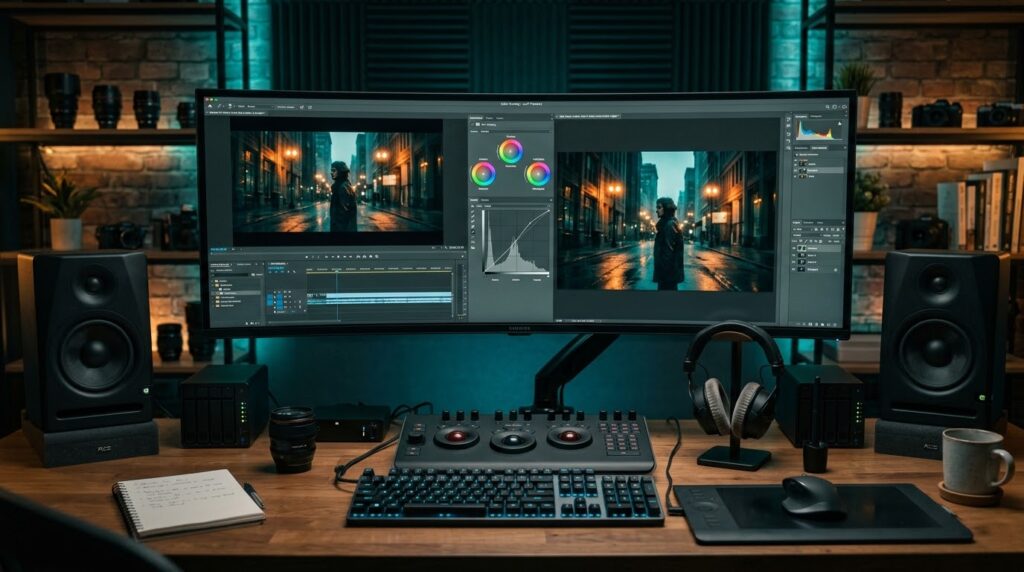
Color constancy is a key feature of professional image editing. When photographs, video frames, commercial graphics, and cinematic images need to have an identical visual identity, Adobe Photoshop has Color Lookup adjustment layers that enable editors to use three-dimensional lookup tables, or 3D LUTs, to alter color relationships, contrast, saturation and tonal appearance. Such technologies are especially effective for establishing cinematic color grades that are consistent across various creative elements. But the use of a preset is not enough to obtain accurate outcomes. Editors need to grasp how LUT files work, how color profiles alter their look, and how export parameters impact the final output. A grade that looks balanced in one document may not look the same when moved to another image or exported for video production. Adjusting opacity, color management, and reference matching can help to reduce these disparities. Designers and photographers may create a repeatable Photoshop approach that maintains an identifiable cinematic style, but also allows for future adjustments. This strategy boosts production efficiency and allows for more consistent visual results across many deliverables.
A Peek Inside 3D LUTs & Color Lookup Tables in Photoshop
A 3D lookup table is a math mapping. It maps an input color value to an output color value. Instead than spending hours tweaking every pixel individually, a LUT simply takes a color relationship and applies it to the image so that editors can quickly replicate a specific look. The Photoshop Color Lookup adjustment layer supports LUT formats like the usual .CUBE and .3DL depending on the application version and file parameters. A LUT can add warm highlights, colder shadows, more contrast, subdued colors, or a certain film-like feel. However, a LUT does not allow for correction of exposure, white balance or uneven lighting. The output is very much dependent on the properties of the source image and the assumptions used in the design of the LUT. Applying a lookup table that was created for a specific camera profile or color space to footage and photos that were prepared differently can sometimes lead to unexpected results. Understanding the difference prevents editors from thinking of LUTs as universal settings. A LUT is not a standalone element, it is part of a larger color grading pipeline that includes correction, creative stylings and output verification.
Correct Installation and Loading of LUT Files
Editors must ensure their LUT files are compatible with Photoshop and maintained in an organized area before moving onto a cinematic grade. The most common LUT file formats have the extensions .CUBE and .3DL, however it may vary on the software version and the file structure. Applying a LUT To apply a LUT Open the image to be corrected. Add a Color Lookup adjustment layer. In the Properties panel, select the table you want to use. Photoshop comes with a handful of preset LUTs, and you can load other compatible files using the custom LUT controls. If you find yourself working on similar projects, having a folder devoted to your approved LUTs will make it easy to find the right grading settings. Use descriptive file names to tell what you want the image to appear like, neutral correction, warm movie contrast, subdued documentary style, etc. Editors should steer clear of imprecise names that offer no clue as to the table’s purpose. It is also a good idea to keep an unmodified duplicate of the original LUT files, so that new or renamed versions do not interfere with existing projects. Before deploying a custom table to production, test it against a few representative photos to see if it has a consistent behavior across diverse lighting and color distributions.
Creating a Non-Destructive Color Grading Workflow
A solid cinematic grading method starts with a non-destructive layer structure that separates technical adjustments from creative styling. Photoshop adjustment layers allow you to change color and tonal relationships without permanently altering the original image pixels. A workable solution is to put the exposure and white balance tweaks near the bottom of the adjustment stack, then the contrast tweaks, and then the Color Lookup layer. Then you can make more color modifications to get the overall look you want. This way it is simpler to see which action is responsible for an undesired change in brightness, saturation or contrast. Editors may also bundle similar edits into specified groups for distinct visual treatments or delivery needs. For example, you may have a neutral correction group and a distinct cinematic look group on a project so that you can stop the creative grade without losing the foundational corrections. Layer masks can be used to limit the effect of a LUT to certain areas and the opacity of the layer can be used to limit the strength of the effect. This separation is especially useful when a customer wants a more conservative grade, or when several images need to share a similar overall look, but not be treated exactly the same.
How to Create Consistent Cinematic Looks Across Multiple Images
Keeping a cinematic look constant is not just a matter of applying the same LUT to every shot. Images may differ in exposure, white balance, dynamic range, camera features and lighting circumstances, thus the same table produces varied visual outcomes. First, the editors should normalize the photographs to achieve better consistency. This includes addressing major exposure and color balance variations. Once the source material is adequately balanced, a common LUT can be used to set the artistic direction across the body of work. Then the editor can conduct subtle image-specific tweaks to compensate for variances in shadows, highlights and saturation. Reference photographs are useful to establish the visual style you want to achieve, especially for matching skin tones, backdrop colors and highlighting warmth across a series. The strategy is not to try to make all pictures identical in terms of numbers, but to try to keep a consistent visual identity and to respect the lighting circumstances of each scenario. A shared adjustment group can be a repeatable starting point but individual photos may still need unique masks or correction layers. This gives you a familiar cinematic look but not at the expense of breaking the natural color relationships or giving you a one size fits all look.
Photoshop Grades Matched To Video Editing Workflow
Particular importance in synchronizing the grading workflow while working with still photographs and frames of video in the same production. Photoshop allows for correction of still photos using Color Lookup adjustment layers, and many video editing and color grading products accept similar LUT files through their own color management systems. Distributing the same LUT file means a shared creative starting point, but not always an identical output across applications. Input color spaces, transfer functions, bit depths, and display transformations may be interpreted differently by different programs. A photograph may have a display-oriented tonal look . Video material may also be encoded with a log encoding that preserves a large dynamic range . This means that if you apply a LUT for log footage directly to a regular shot you can wind up with too much contrast or wrong colors. Editors need to decide what the intended input color space is, and whether a technical conversion is needed before applying the creative LUT. A practical quality check is to match a representative frame in both applications. The aim is consistency in overall appearance, taking into consideration changes in image processing, source material and output configuration.
Managing Color Profiles and Export Settings
When exporting, color management is key to maintaining the look of a cinematic grade. The color profile of an image describes how to interpret the numerical values that represent its colors, and the output format and target viewing environment determine how these values are replicated. sRGB is a reasonable choice for many web-based still image presentations because it is widely supported by browsers and common display devices. Other color spaces may be suitable for print, unique photography operations or managed video production pipelines. Before exporting an image, editors should check the color profile of the document and choose an output setup that matches the destination. Assigning a profile is not the same as converting to a target profile. Conversion is the process of recalculating color values such that the look is as similar as possible within the destination gamut. JPEG exports can create compression artifacts, especially in smooth gradients, whereas better formats can retain more image information for later processing. Editors should additionally check that the profile metadata they wanted to export still exists in the output file. Testing the final file outside of Photoshop can show surprising differences due to unsupported profiles, application settings, or display conditions.
Addressing Common LUT and Color Grading Problems
Even if you are using the same file across a project, there are a number of challenges that can destroy LUT consistency. If you see too much contrast then it may be an indication that the LUT is expecting a different input color space or that the source image has not been adjusted correctly. Applying a strong creative table to already severely graded material may oversaturate colors. The color modifications performed by the LUT may not be suitable for the original lighting or camera response, turning skin into green, orange or magenta. In some circumstances, decreasing the opacity of the Color Lookup layer can be a rapid fix, while further adjustment layers can enable more specific correction. If a custom LUT is not in Photoshop’s selection controls, check the file extension, compatibility, and loading process of the installed version of the application. If there is a difference , check input transforms , functioning color spaces , display settings and output encoding . Photoshop vs video editor . Editors also need to be able to differentiate real differences in images from differences resulting from uncalibrated monitors or irregular viewing conditions. These flaws are easier to discover when a reference image is available, and exported results are compared under controlled conditions, which helps eliminate wasteful revisions.
Developing a Repeatable LUT Management Process
An organized LUT management system can assist creative teams maintain consistency between projects and save down on time spent re-creating established looks. Editors are encouraged to create a curated library of authorized tables, to document the intended input circumstances, and identify which applications or stages of development support each LUT. Version control makes sense if a creative team is tweaking a grading preset, as changes to a table can influence the look of work that’s already been done. A common project template could include named correction layers, a Color Lookup adjustment layer, and distinct groups for different creative directions. The editor should check skin tones and neutral surfaces by comparing representative still photographs with selected video frames. The editor should check the produced files in the specified viewing environment before delivery. It is also vital to have editable Photoshop documents, so that changes may be needed in the future. Flattened exports are useful for distribution but do not maintain the independent controls of adjustment layers and masks. A repeatable workflow should then separate working files from final delivery materials. Organized LUT libraries, rigorous color management and regular quality checks together allow editors to produce more predictable cinematic grades throughout still and video production, while keeping the creative process flexible and fast.