Cleaning Up the Right-Click Context Menu Manually via the Registry to Remove Uninstall Remnants
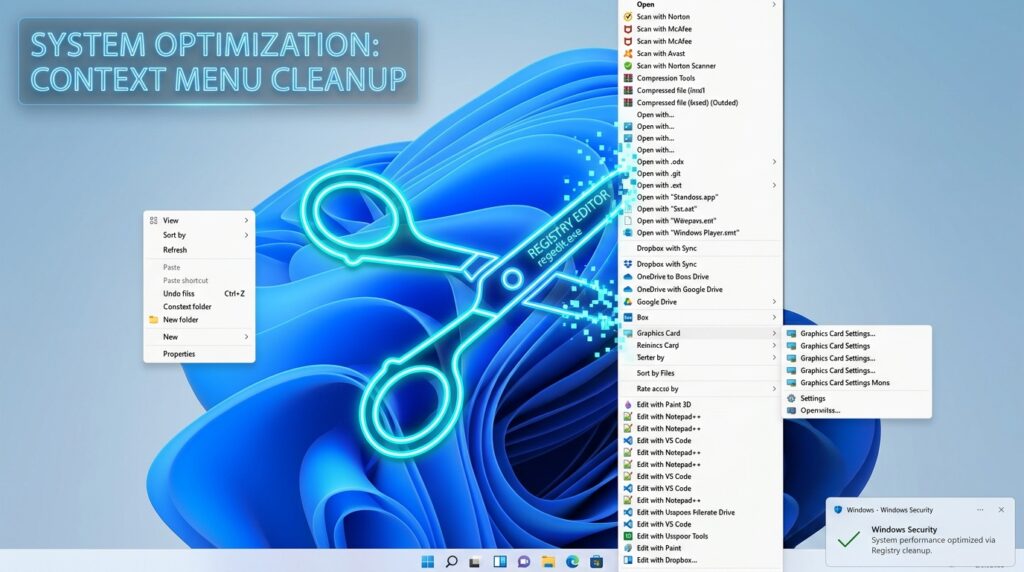
Cleaning Up the Right-Click Context Menu Manually via the Registry to Remove Uninstall Remnants
The context menu that appears when you right-click on a Windows computer should allow you to quickly access commands, shortcuts, and program integrations that you use often. This menu, on the other hand, often gets overloaded with remnant items from software that has already been removed from the system after some time has passed. During the installation process, many apps integrate extensively into the context menu; yet, the uninstallers for these applications usually fail to delete every registry item linked with the application. Because of this, users could experience broken shortcuts, empty instructions, duplicate actions, or superfluous menu extensions, all of which reduce the speed of the interface and contribute to the appearance of visual clutter. Even though there are cleaning programs available from third-party developers, manually altering the Windows Registry offers an increased level of accuracy and control over which items are left in place and which are eliminated. Just before making any modifications, it is very necessary to have a solid understanding of how context menu handlers are saved and handled inside the Registry. The manual cleaning process, when carried out with caution, has the potential to restore responsiveness, decrease menu clutter, and eradicate leftovers that were left behind by uninstall processes that were poorly constructed.
Acquiring Knowledge about the Organization of the Windows Context Menu
It is possible to construct the Windows context menu by using a number of different registry locations that specify commands, shell extensions, and program integrations. Depending on whether they pertain to files, folders, drives, or background regions inside File Explorer, various sorts of menu items are saved in distinct branches. These branches are different from one another from one another. There are some items that are straightforward shortcuts for commands, while others are dynamic shell extensions that are loaded via various components of the system. Because of its layered structure, software developers are able to include functionality directly into the interface of the operating system. On the other hand, this also indicates that residues of the uninstall process might remain in various registry locations long after the program that was linked with it has been deleted. The ability to recognize which entries are safe to delete and which are connected to important Windows functioning is facilitated by having an understanding of how various registry branches interact with one another.
Why Remnants Still Remain in the Context Menu After Uninstallation
The removal of core program files is the primary focus of many uninstallers, whereas additional integrations, such as context menu handlers, are less often addressed. There are instances in which registry entries are left behind because the uninstaller is unable to find components that have been relocated or updated. Other times, developers purposefully leave integrations behind in order to maintain compatibility or settings across different versions. As a consequence of Windows’s effort to handle faulty references, these remaining entries may lead to executable files that are missing, which might cause commands to fail or take longer to load. Installing and removing software on a regular basis might result in the accumulation of dozens of entries that are not essential over time. This accumulation not only makes the user interface more cluttered, but it also has the potential to significantly impact Explorer’s performance, particularly in situations when numerous shell extensions try to load at the same time.
The Identification of Context Menu Items That Cause Problems
Prior to deleting entries from the register, it is essential to determine whether things inside the registry are either defective or superfluous. The presence of blank menu selections, duplicate instructions, entries relating to software that is no longer available, and poor reaction times when right-clicking are all common indications. It is possible that some leftovers may only show up when you right-click on certain file types, while others will have an effect on folders or desktop backdrops everywhere. By comparing the items on the visible menu to the apps that are presently installed, it is possible to establish which elements are no longer relevant. Before deleting questionable commands, it is also helpful to test them to ensure that they are no longer functioning appropriately. It is possible to limit the likelihood of mistakenly eliminating legitimate system integrations by means of careful identification.
Performing a Backup of the Registry Prior to Making Any Changes
Incorrect adjustments may have an effect on the system’s functioning or stability, therefore editing the Windows Registry directly comes with its own set of inherent risks. The creation of a registry backup is a necessary step to take before deleting any items from the context menu. The exporting of the appropriate registry branches makes it possible to undo modifications in the event that they are required. System restore points provide an extra layer of protection due to the fact that they enable a complete rewind in the event that unforeseen problems arise. When working with shell extensions, backups are particularly crucial since certain entries may look strange but yet enable valid system functionality. This is because some entries include shell extensions. Having a backup strategy that is well-organized guarantees that manual cleaning will continue to be secure and recoverable.
Locating Entries for the Context Menu Within the Registry in the
Depending on the nature and extent of their functions, items in the context menu are dispersed throughout a number of different registry routes. It is common practice to put file-specific commands inside shell or shellex branches that are connected with certain file extensions. On the other hand, folder and desktop integrations are often found in areas that are more generically tied to Explorer. When it comes to globally registered component categories, shell extensions could also be present. In most cases, each item will include command references, display names, or handler IDs that will expose the program that is linked with certain entries. To find uninstall leftovers in an effective manner, it is helpful to have an understanding of these structural patterns. It is essential to do a thorough evaluation of linked data prior to deletion since it is possible that some entries correspond to common system components rather than apps developed by third parties.
Elimination of Corrupt Commands and References That Are Not Valid
Following the identification of outdated entries, it is possible to manually delete them by either removing the registry keys that belong to them or temporarily deactivating them. It is generally simple to recognize broken instructions since they often refer to executable paths that are no longer in existence. In addition to helping to optimize the context menu, removing these incorrect references also helps to eliminate needless Explorer processing. It is possible that in some circumstances, it might be more advantageous to temporarily disable or rename a registry key before permanently deleting it. This is done to ensure that no significant functionality is impacted. The gradual cleaning method is more secure than the removal of many items all at once since it makes debugging easier in the event that unexpected behavior happens thereafter.
Improvements in Explorer Performance Through the Management of Shell Extensions
Shell extensions are one of the most prevalent factors that contribute to the poor performance of context menus. This is because shell extensions load extra code straight into File Explorer. Erroneous or poorly optimized extensions might cause a delay in the display of menus, particularly in situations when several handlers are competing for resources. It is possible to enhance responsiveness and minimize overhead by removing shell extensions that are not used. There is a possibility that some extensions may continue to function even after the parent program has been deleted, leaving behind dormant components that will continue to use system resources when right-clicking activities are performed. It is possible to dramatically enhance Explorer performance and eliminate interface latency by carefully clearing these residues, especially on older systems or installations that have been severely updated.
Preserving a Context Menu That Is Both Uncluttered and Effective
In order to maintain the context menu’s organization, it is necessary to do routine maintenance and perform software installation methods selectively. It is recommended that applications that introduce unwanted right-click integrations be properly adjusted during the installation process whenever it is feasible to do at all. One way to avoid clutter from building up over time is to examine new entries on a regular basis. Not only does the maintenance of a simplified context menu help visual organization, but it also adds to improved system responsiveness and usability. Users are able to keep more control over their operating environment and prevent the performance deterioration caused by uninstall leftovers and excessive shell extensions if they have a better grasp of how Windows saves and handles these integrations.