Using Command Prompt to Create Symbolic Links and Move Unmovable App Data to Secondary Drives
Using Command Prompt to Create Symbolic Links and Move Unmovable App Data to Secondary Drives
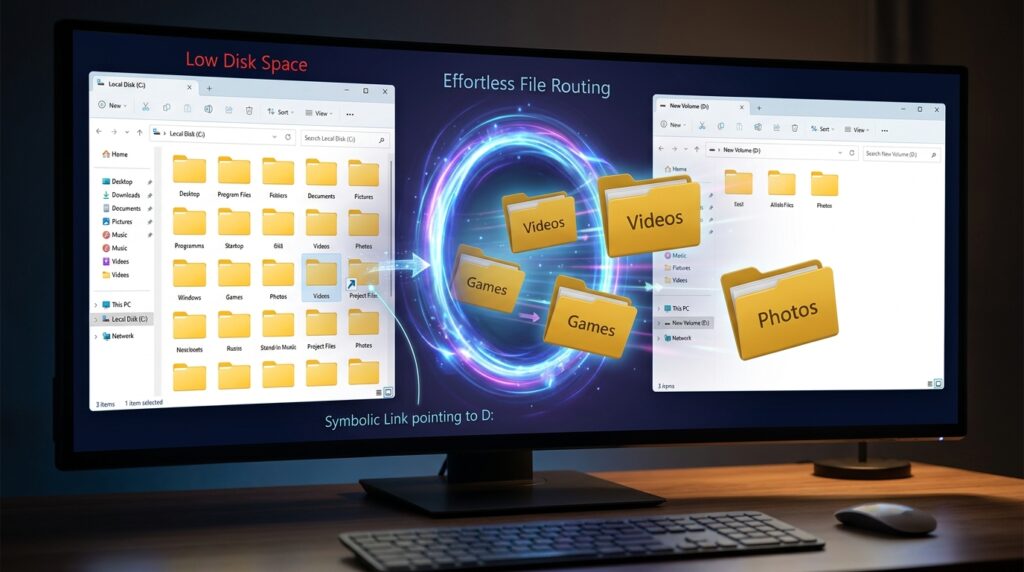
It is common for modern apps to store enormous volumes of data on system drives, which progressively consumes precious storage space and reduces the performance of the operating system. It is common practice for games, creative software, development environments, and synchronization tools to store cache files, libraries, and configuration data inside protected folders. These folders are not readily relocatable using settings that are considered standard. Critical components often stay attached to the primary drive, which causes storage strain on smaller SSD installations. This is the case even when applications permit partial migration. Symbolic links provide a strong solution by rerouting file system paths in a way that is completely undetectable from one place to another. Users have the ability to establish symbolic links via the use of Command Prompt. These links provide the impression to Windows and apps that the data is still there in its original place, even when it is really maintained on a secondary disk. Without compromising the operation of the program, this method makes it possible to manage storage in a sophisticated manner. It is vital to have a solid understanding of how symbolic links interact with the Windows file system in order to move without risk any application data that is either huge or otherwise unmovable.
Knowing What Symbolic Links Are and How They Work
One sort of file system reference is known as a symbolic link, and it facilitates the seamless redirection of one route to another destination. In the event that a program attempts to access the initial folder, Windows will automatically redirect the request to the linked destination. This occurs without the application having to make any modifications to itself. Symbolic links, in contrast to simple shortcuts, function at the level of the file system, which means that the majority of software considers them as if they were actual folders. Because of this, they are particularly handy for migrating application data that would otherwise be restricted to specific system pathways that would otherwise be locked. It is possible for symbolic links to make reference to folders that are situated on different disks, partitions, or even network locations. A thorough comprehension of this transparent redirection method is absolutely necessary prior to making any modifications to significant application folders.
The rationale behind why applications save data on the system drive
It is common for developers to believe that the system drive will always be accessible and will give the quickest storage access. This is the reason why many programs default to using the system drive. Because of compatibility concerns, it is usual practice to keep user profile directories, application data folders, cache locations, and temporary working files inside protected Windows paths. Although this approach is handy for developers, it might be troublesome for systems that have a restricted capacity for solid-state drives (SSD). Large programs, such as games, media editors, and virtual machine environments, have the potential to create massive volumes of data over time, which may rapidly fill the main drive. It is necessary for users to look for alternate ways of storage management since there are instances in which apps do not provide an official option to move these files.
The Ways in Which Symbolic Links Make Transparent Data Relocation Possible
By isolating the logical file path from the actual storage location, symbolic links are able to circumvent this constraint. Despite the fact that the program may still see the path to the original folder, the data itself is located in a different location. Consequently, customers are able to transfer big data directories to secondary drives while maintaining the functioning of the program itself. As a result of the fact that Windows handles the redirection automatically, apps continue to function correctly without the need for reinstallation or modifications to the internal settings. Moving cache-heavy applications, gaming libraries, development environments, and synced cloud folders are all areas in which this strategy proves to be extremely useful. In order to recover important space on the system disk without compromising program compatibility, well setup symbolic links provide a smooth method of doing so.
Data Preparation Prior to the Establishment of Symbolic Links
Moving the target data to its new location in a methodical manner is a prerequisite for the creation of a symbolic link. As a standard procedure, this step requires totally stopping the program in order to prevent active file access while the transfer is taking place. After that, the primary directory need to be copied or transferred to the secondary disk, all the while ensuring that the whole folder structure is maintained. Before building the connection, it is essential to make sure that the data that is being moved is not corrupted in any way. This is because any transfers that are broken or incomplete might lead to application instability. When dealing with protected system folders, it is often necessary to have administrative permissions. To limit the likelihood of damaged settings or unsuccessful program launches after the completion of the relocation procedure, proper preparation is essential.
Utilizing the Command Prompt to Establish Symbolic Connections
Within the Windows file system, the Command Prompt is equipped with tools that allow users to create symbolic links directly from within the system. Users are able to construct directory links that redirect the original route to the new storage location by making use of the relevant command syntax. There are many distinct kinds of links, such as junction points, hard links, and symbolic links, and each of these sorts of connections behaves in a somewhat different way. When it comes to transferring application data, directory symbolic links are often the preferable option since they allow for flexible route redirection between disks. When making changes to protected application folders, it is often essential to execute Command Prompt with administrator capabilities. Due to the fact that badly generated links may fail silently or cause application failures, it is essential to have correct syntax and path correctness.
Transferring Large Application Libraries in a Secure Manner
The relocation of huge program libraries, such as game installs or media asset collections, is one of the most prevalent applications of symbolic links due to their efficiency and versatility. The storage capacity of modern video games typically exceeds hundreds of gigabytes, making them excellent candidates for the migration of secondary storage. Additionally, creative apps create a substantial amount of cache and project preview data, which may cause system storage to get overwhelmed. Through the use of symbolic links, these libraries are able to maintain their full functionality while simultaneously moving the storage burden to bigger secondary drives. Generally speaking, software updates and launcher integrations continue to function smoothly. This is due to the fact that the operating system continues to notice the initial route. For situations in which there is a shortage of storage space, this procedure offers a more practical option to complete reinstallation.
Management of Application Caches and Data That Is Only Temporary
Applications that produce a significant amount of transient data are especially well-suited for the relocation of symbolic links when they exist. As a result of their usage, video editing applications, 3D rendering tools, browsers, and development environments often generate enormous cache folders that continue to grow in size. By moving these places to secondary drives, your smaller solid-state drive (SSD) system drives will see less wear, and you will be able to conserve free space for essential operating system operations. Considering that ephemeral data often does not need the highest possible storage performance, secondary drives that are slower are frequently suitable for these kinds of workloads. It is possible to enhance long-term storage management by relocating cache-heavy files using symbolic links. This does not dramatically impact the usefulness of the program.
By Using Symbolic Links, You Can Avoid Making Common Mistakes
Incorrect setting of symbolic links might result in broken file paths, data that is unavailable, or fails to begin applications using the program. The creation of the symbolic link prior to the relocation of the original data is a typical error that may lead to the creation of directories that are either identical or in conflict with one another. Furthermore, a problem arises when apps continue to be active during the process of file transfer, which results in the transport of files that are either unfinished or locked. A further potential cause of data loss is the hasty deletion of the original directory without first validating the functioning of the connection. In order to guarantee that all files are being accessible in the appropriate manner from the new location, it is essential to do exhaustive testing of the program once the symbolic link has been created first. There is a reduction in these hazards with careful execution and preparation of backups.
preserving the adaptability of long-term storage containers
The long-term flexibility that symbolic linkages provide allows for the management of ever-changing storage needs. Users are able to continue moving data that is not critical away from the main drive without causing any disruptions to program installations even as applications continue to evolve and get more complex over time. In addition to enhancing the overall storage organization, this strategy enhances the useful lifetime of smaller solid-state drive configurations. It is helpful to uncover further relocation possibilities by periodically evaluating big program directories. This is because use patterns are always changing. When combined with routine storage maintenance and backup procedures, symbolic links become an invaluable tool for minimizing disk utilization and maintaining a Windows environment that is more efficient over long periods of time.